Your Dashboard
The dashboard shows your products, buyers, live links and new enquiries at a glance. Every menu page opens as a panel over it.
The dashboard is the first screen you see after signing in. It answers three questions quickly: is anything new, is anything about to expire, and what are buyers asking for?
You see it after you finish the setup wizard. Until then, the wizard opens instead. See Quick Start.
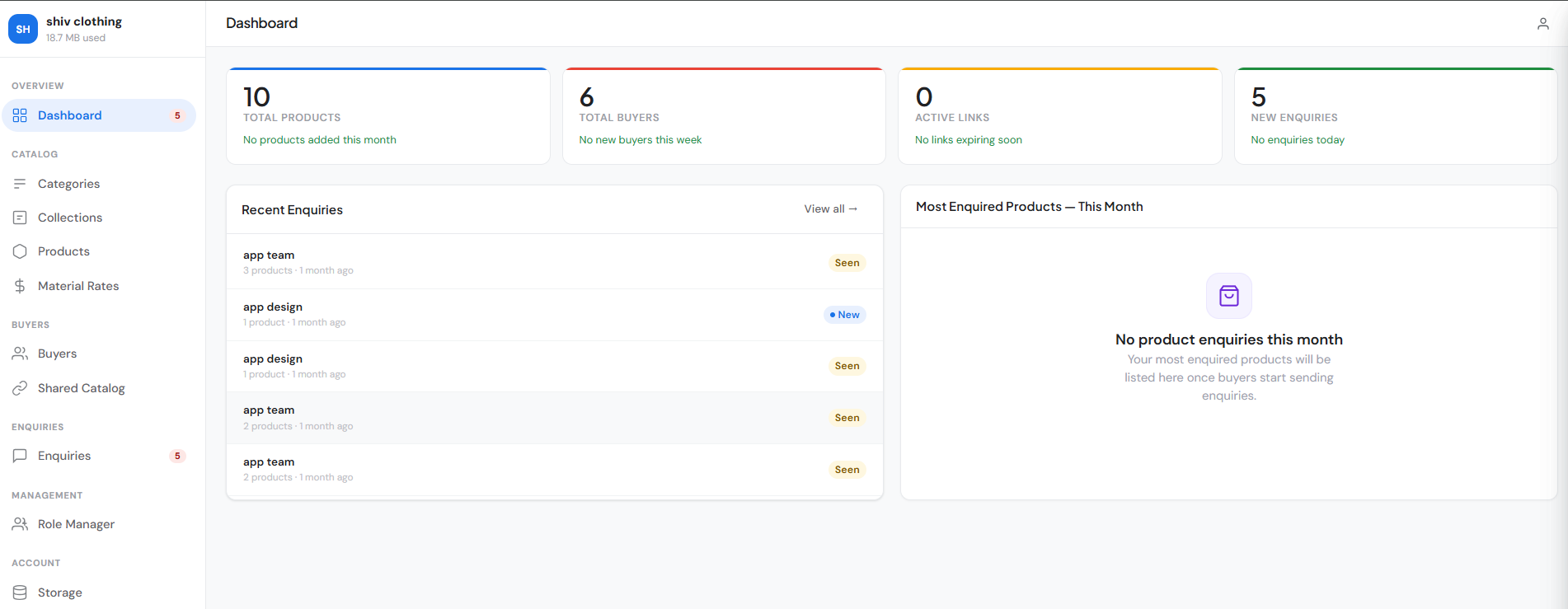
Summary cards
| Card | What it tells you |
|---|---|
| Total Products | How many products you have, and how many were added this month |
| Total Buyers | How many buyers you have, and how many are new this week |
| Active Links | Live links, with a warning if any expire within 2 hours |
| New Enquiries | Enquiries not opened yet. Turns red when there are new ones |
Below the cards: Recent Enquiries (your last 5) and Most Enquired Products — This Month (your top 5).
Reading the small line under each card
Each card has a short line under the number. It tells you what changed recently.
| Card | Example line | What to do |
|---|---|---|
| Total Products | ↑ 12 added this month | Nothing. It shows your catalog is growing. |
| Total Buyers | No new buyers this week | Add buyers you spoke to this week, so you can send them links. |
| Active Links | ⚠️ 2 expire in <2 hrs | Open Shared Catalog and extend any link a buyer still needs. |
| New Enquiries | 3 received today | Click the card to open Enquiries and reply. |
The New Enquiries card is clickable when it shows new enquiries. Opening an enquiry marks it as Seen, so the count goes down as you work through them.
Service and package businesses
If your business type is Services / Packages, the first card shows Total Packages instead. The New Enquiries card counts package enquiries and opens Pkg Enquiries. See Business Types.
Recent Enquiries
This list shows your 5 latest enquiries. Each row shows the buyer's name, the number of products and how long ago it arrived. A badge shows its status, such as New or Seen.
Click a row to open that enquiry. Click View all → to open the full Enquiries inbox.
Before your first enquiry, this box says No enquiries yet, with a Share Catalog button. Share a link and your first quotations will appear here.
Most Enquired Products — This Month
This list ranks up to 5 products by how many enquiries included them this calendar month. Each row shows the product name and a count, such as "8 enquiries".
It starts fresh at the beginning of each month. Until buyers send enquiries, it shows No product enquiries this month.
Use this list to plan stock and new links. If one kurti design keeps coming up, keep it in stock and put it near the top of your next collection.
A five-minute daily check
- Look at New Enquiries. If it is red, click it and reply to each new buyer.
- Look at Active Links. If a warning shows, extend the links your buyers still need.
- Glance at Most Enquired Products — This Month to see what is selling.
- Add any new buyer you met yesterday, so they can get their own link today.
The menu
| Group | Pages |
|---|---|
| Overview | Dashboard |
| Catalog | Categories, Collections, Products, Material Rates |
| Packages | Packages (service businesses) |
| Buyers | Leads, Buyers, Shared Catalog |
| Enquiries | Enquiries |
| Invoices | Invoices (add-on) |
| Management | Role Manager |
| Account | Storage, AI Extraction, Advance Features, Support |
| Settings | Settings |
Why some menu items are missing
The menu only shows what applies to your business. It is normal not to see every item.
- Catalog or Packages. Product businesses see the Catalog group and Enquiries. Service businesses see Packages and Pkg Enquiries instead.
- Material Rates appears once one of your categories uses Formula Price. See Formula Pricing.
- Leads appears when Lead Connect is turned on for your account. See Lead Connect.
- Invoices, Role Manager and AI Extraction appear only when they are available on your account.
- The menu appears only after your Business Name and WhatsApp No are saved.
Count badges
Small numbers next to menu items tell you something is waiting.
| Menu item | The number means |
|---|---|
| Dashboard and Enquiries | New enquiries you have not opened |
| Pkg Enquiries | New package enquiries you have not opened |
| Leads | New leads that came in from your lead sources |
| Invoices | Draft invoices not yet finalised |
| Support | Open tickets where the ShowCato team has replied |
Pages open as panels
When you click a menu item, the page opens as a panel over the dashboard. Close the panel to come back to your cards. This keeps your place while you add a product or check an enquiry.
Top bar
Click your name at the top right for User Profile, your businesses (click one to switch), Add Business and Logout.
Each business has its own products, buyers, links and enquiries. The dashboard always shows the business you are working in. Check the name in this menu before you add products, so they go into the right business.
Storage messages
When your storage is 75% full, a message appears at the top of the page. At 90% it says Storage almost full!. Both include a request for more space → link to Support. See Storage.
What team members see
The summary cards and lists are for the account owner. A team member who signs in sees a welcome message with their name instead.
Their menu shows only the sections you allowed in Role Manager. Settings, Storage, Advance Features and Support stay with the owner. See Team Members.
Common mistakes
- Ignoring the expiry warning. A buyer who opens an expired link sees no products. Extend the link before it runs out.
- Working in the wrong business. If you run two businesses, switch from the top-right menu first.
- Only watching WhatsApp. Some buyers confirm a quotation but never send it. Check the New Enquiries card and the badge on Enquiries every day.